 If you look to the right, I stole that picture. It's not mine, I didn't make it, and I sure didn't check the "free to use for use" setting on Google, so therefore I stole that picture. After reading the first chapter of Austin Kleon's Steal Like an Artist I learned that being a designer was more then just being creative. Kleon went over the fact that nothing is original, and everything you make is just stolen from someone else. There was a quote I really liked in the book, "What is originality? Undetected plagiarism" -William Inge. I feel like this quote summarizes this chapter very well, considering it's everything from genetics to always reading. Kleon also stated to always carry a pen and paper with it, because you never know what you'll see. I get a creative block quite a lot, so I feel like this tool would be handy considering I could just pull out my paper and see what creative ideas I might've gotten in the past. Overall, I will use the strategies in this book for all my future projects (If you click the image, you can buy me this book for Christmas!! :)))))
Monday, September 12, 2016
Steal Like an Artist Review
If you look to the right, I stole that picture. It's not mine, I didn't make it, and I sure didn't check the "free to use for use" setting on Google, so therefore I stole that picture. After reading the first chapter of Austin Kleon's Steal Like an Artist I learned that being a designer was more then just being creative. Kleon went over the fact that nothing is original, and everything you make is just stolen from someone else. There was a quote I really liked in the book, "What is originality? Undetected plagiarism" -William Inge. I feel like this quote summarizes this chapter very well, considering it's everything from genetics to always reading. Kleon also stated to always carry a pen and paper with it, because you never know what you'll see. I get a creative block quite a lot, so I feel like this tool would be handy considering I could just pull out my paper and see what creative ideas I might've gotten in the past. Overall, I will use the strategies in this book for all my future projects (If you click the image, you can buy me this book for Christmas!! :)))))

Friday, September 2, 2016
Project Proposal
Mineral: Ruby
Animal: Anteater
Letters: A, F
Number: 19
For my company name, I came up with "19 Anteaters", which is a family owned farm that breeds anteaters, which is located on Ruby and Farner. This is targeted toward families or other farmers looking to purchase anteaters. Our anteaters are fed the best source of protein, Science Diet. It helps reduce fleas as well as allergies, to help keep your future anteater
Animal: Anteater
Letters: A, F
Number: 19
For my company name, I came up with "19 Anteaters", which is a family owned farm that breeds anteaters, which is located on Ruby and Farner. This is targeted toward families or other farmers looking to purchase anteaters. Our anteaters are fed the best source of protein, Science Diet. It helps reduce fleas as well as allergies, to help keep your future anteater
Wednesday, August 31, 2016
Monday, August 22, 2016
Adobe Photoshop CC Tutorial
In honor of school starting, and the process of switching to Adobe creative cloud, I decided to create a tutorial for a new tool in Adobe Illustrator (and so I can get a grade in this class). For this tutorial, I decided to do 3D text, which was a lot simpler than I thought it would be so I think you all shouldn't have a problem with it.

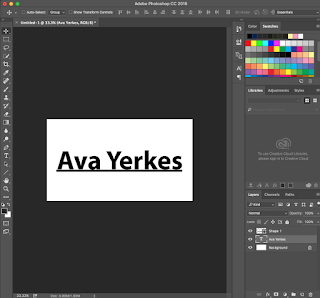 This is the text I chose, I simply just did my name and I put a line shape underneath it so the 3D text will pop more. Next you're going to right click on the text layer and click "convert to shape". This should outline your text and now you can click on the text layer as well as the shape layer and merge them together using command E. After that, right click on the layer and all the way at the bottom it should say "New 3d extrusion from selected layer". Click that, and it should look like the picture below.
 Now that we've converted to the 3d layer, we're going to experiment with the 3d tab and the layers so read carefully. You're going to go back to the layers panel and right click on background, then go all the way to the bottom and click postcard. All this does is put the background behind the 3d layer. Next, you'll combine the background and the text layer together and you should get the next picture below.
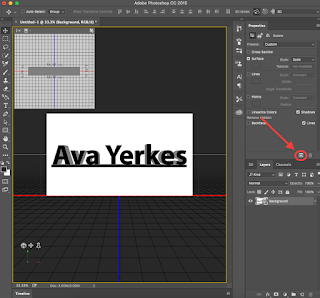 After that, you can experiment with the 3d layers and figure out how you want your text to show up, but all I did was lower the extrusion depth slightly. Now you're going to click the cube in the properties layer (picture on the left) and it should start to render your layer, so it gives off the effect that really pops your 3d text. This process usually takes around 5 minutes for me, but again it depends on how big your document is.
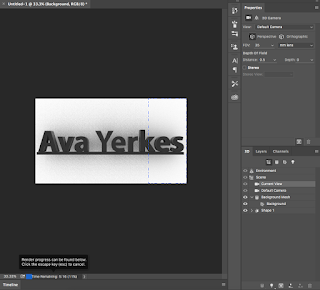 Now this is your final product! Feel free to change any colors of the size or your text, but this is what I ended up liking the most. Thanks for reading!

First things first, to create the document. Now the sizes I listed to the left aren't necessarily the sizes that you absolutely have to use, you can pretty much use any size you want as long as it fits your text, but keep in mind that the bigger the document, the longer the process will take.
 This is the text I chose, I simply just did my name and I put a line shape underneath it so the 3D text will pop more. Next you're going to right click on the text layer and click "convert to shape". This should outline your text and now you can click on the text layer as well as the shape layer and merge them together using command E. After that, right click on the layer and all the way at the bottom it should say "New 3d extrusion from selected layer". Click that, and it should look like the picture below.
 After that, you can experiment with the 3d layers and figure out how you want your text to show up, but all I did was lower the extrusion depth slightly. Now you're going to click the cube in the properties layer (picture on the left) and it should start to render your layer, so it gives off the effect that really pops your 3d text. This process usually takes around 5 minutes for me, but again it depends on how big your document is.
 Now this is your final product! Feel free to change any colors of the size or your text, but this is what I ended up liking the most. Thanks for reading!
Monday, May 9, 2016
Individual Focus


For my individual project, I chose to make a face out of text. I found a tutorial online and made different artists. For my process, you start off tracing the image and putting it on a new layer. I then copy and paste text, and create 20-30 different layers and made them all into a smart object. Then you make another layer of the original image, and selecting a linear burn, and turning the smart object back on and it looks like this.


Subscribe to:
Posts (Atom)